You plan a sale on a laptop, preview it on a laptop, and launch it. Then most of your shoppers see it on a phone, where a countdown bar can eat a quarter of the screen and a sale badge can cover half a product photo.
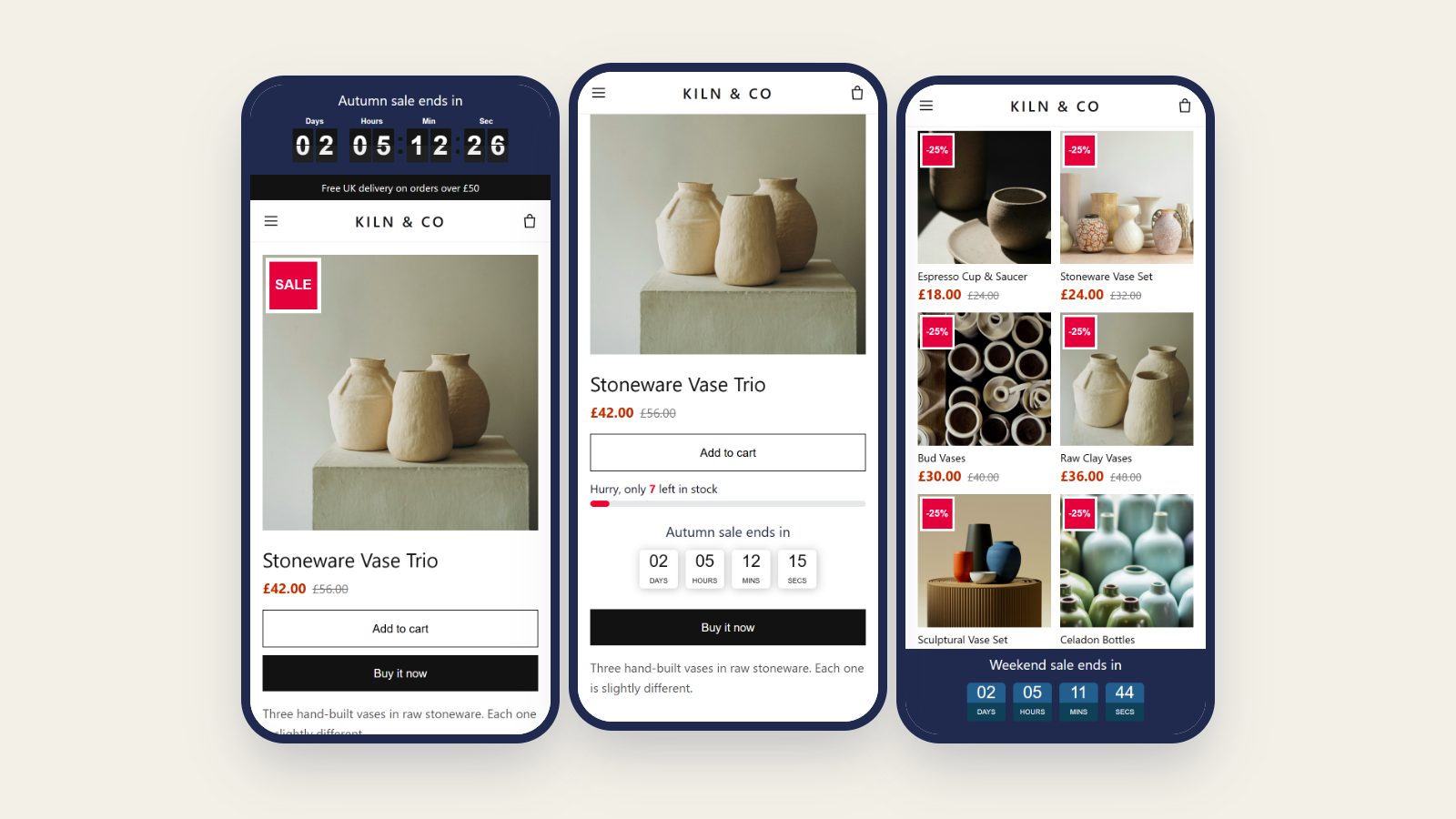
This post covers how to set up the three usual urgency tools (countdown timers, sale badges and low-stock counters) so they help on a small screen rather than get in the way.
On this page
1. Check how your shoppers actually browse
Before changing anything, look at your own numbers. In your Shopify admin, go to Analytics → Reports and open Sessions by device type. Pick the dates of your last sale.
For most stores, phones come out well ahead. If yours do, design the sale for the phone first and check the desktop second, not the other way round.
2. Countdown timers that don't take over the screen
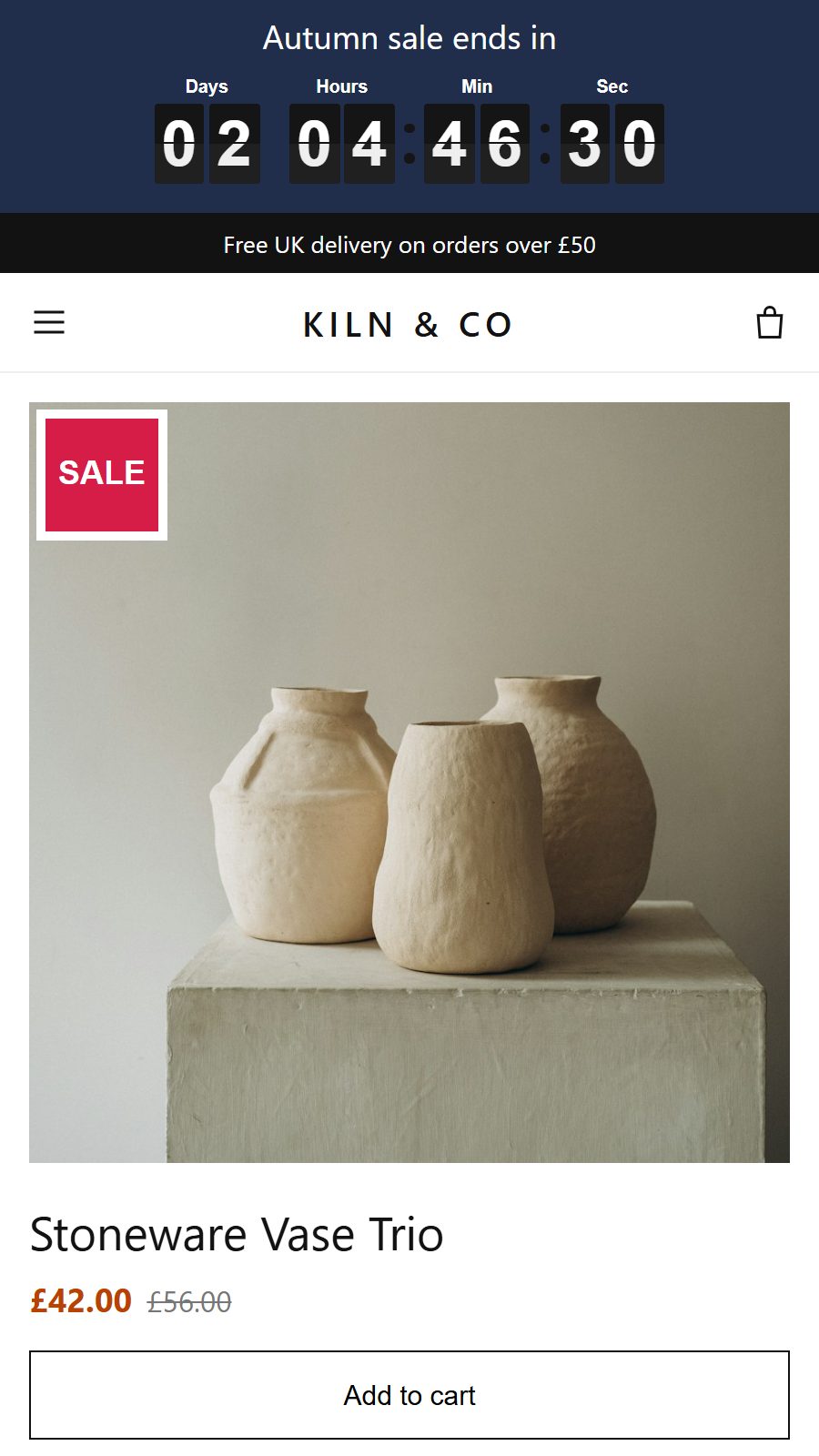
A countdown works because it's visible. On a phone, that's also the risk: a bar fixed to the top of the screen stays there while the shopper scrolls, so every line in it costs space on every page.
A few things keep it under control:
- Keep the copy short. "Sale ends in" plus the clock is enough. If you add a second line with the offer, make it one short sentence. On a phone it wraps onto its own line.
- Pick the position for the page. A fixed bar at the top or bottom suits a site-wide sale. For a single product, putting the timer below the add to cart button keeps it next to the decision without following the shopper around.
- Leave out the button if the bar already links somewhere useful. A button adds another row on a narrow screen.
- Hide the days once they're down to zero. In the last 24 hours, hours, minutes and seconds read more urgently than "00 days".
Sales Discount Manager resizes its timers for phone screens, including its flip-clock style. Setup is in the Create Countdown Timer guide.
3. Sale badges sized for a two-column grid
Most themes show collections as two columns on a phone, so each product card is roughly half the width it is on a desktop. A badge that looks neat at desktop size can cover a big part of the photo, which is the thing the shopper is actually looking at.
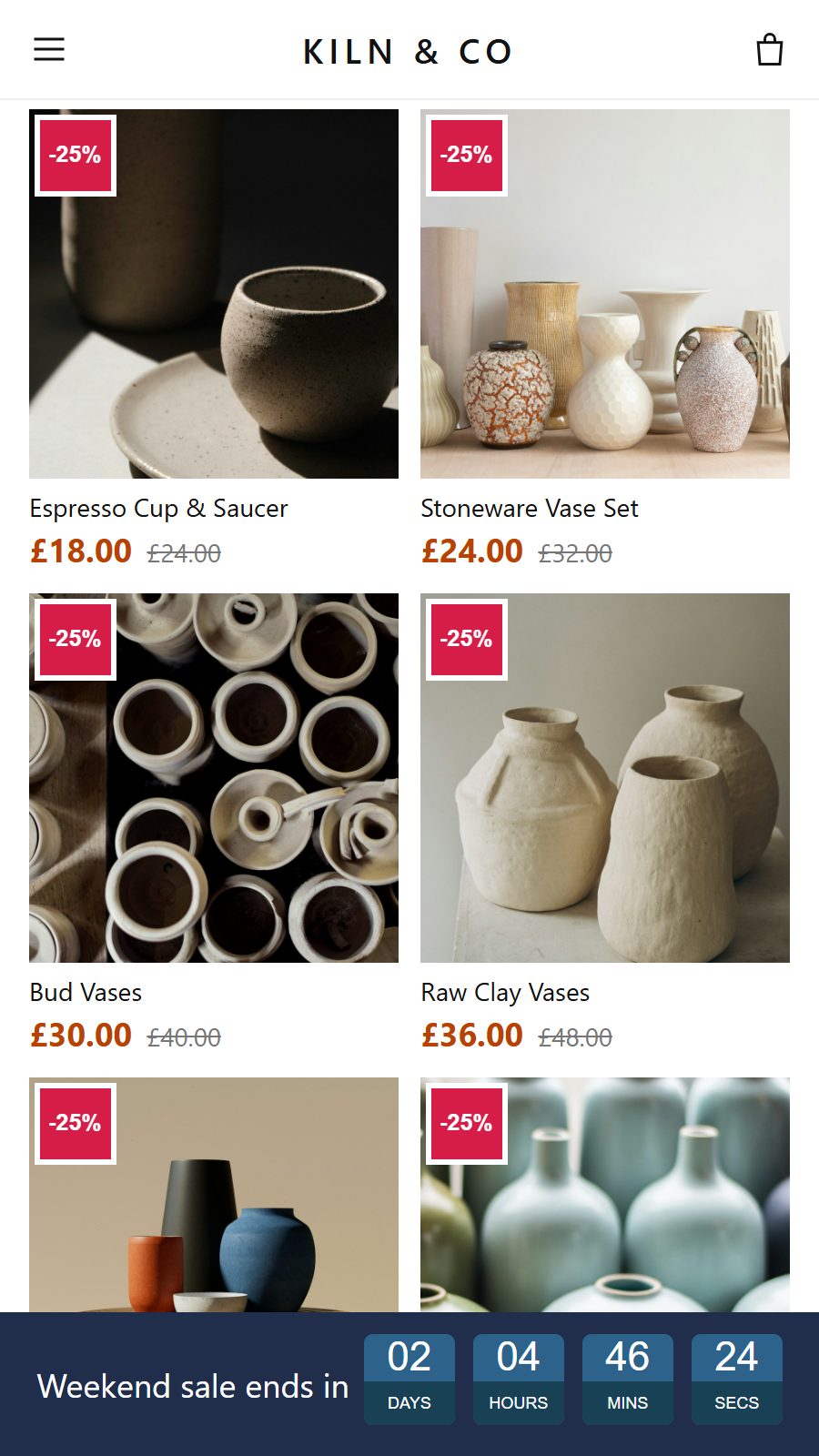
- Use short labels. "-25%" or "Sale" stays readable when the badge is small. A sentence won't.
- Put the badge in a corner the theme leaves empty. Some themes place their own "Sold out" label or a wishlist heart in a corner. Check which one is free.
- Size it for desktop, then check the phone. Sales Discount Manager scales badges down on phone-sized collection grids, so a badge that looks right on desktop doesn't swamp the mobile card.
Setup is in the Create Sale Badge guide.
4. Low-stock counters where the thumb already is
A low-stock message only helps if it's seen at the moment someone is deciding. On a phone, that's around the add to cart button, usually just below the price and product photo.
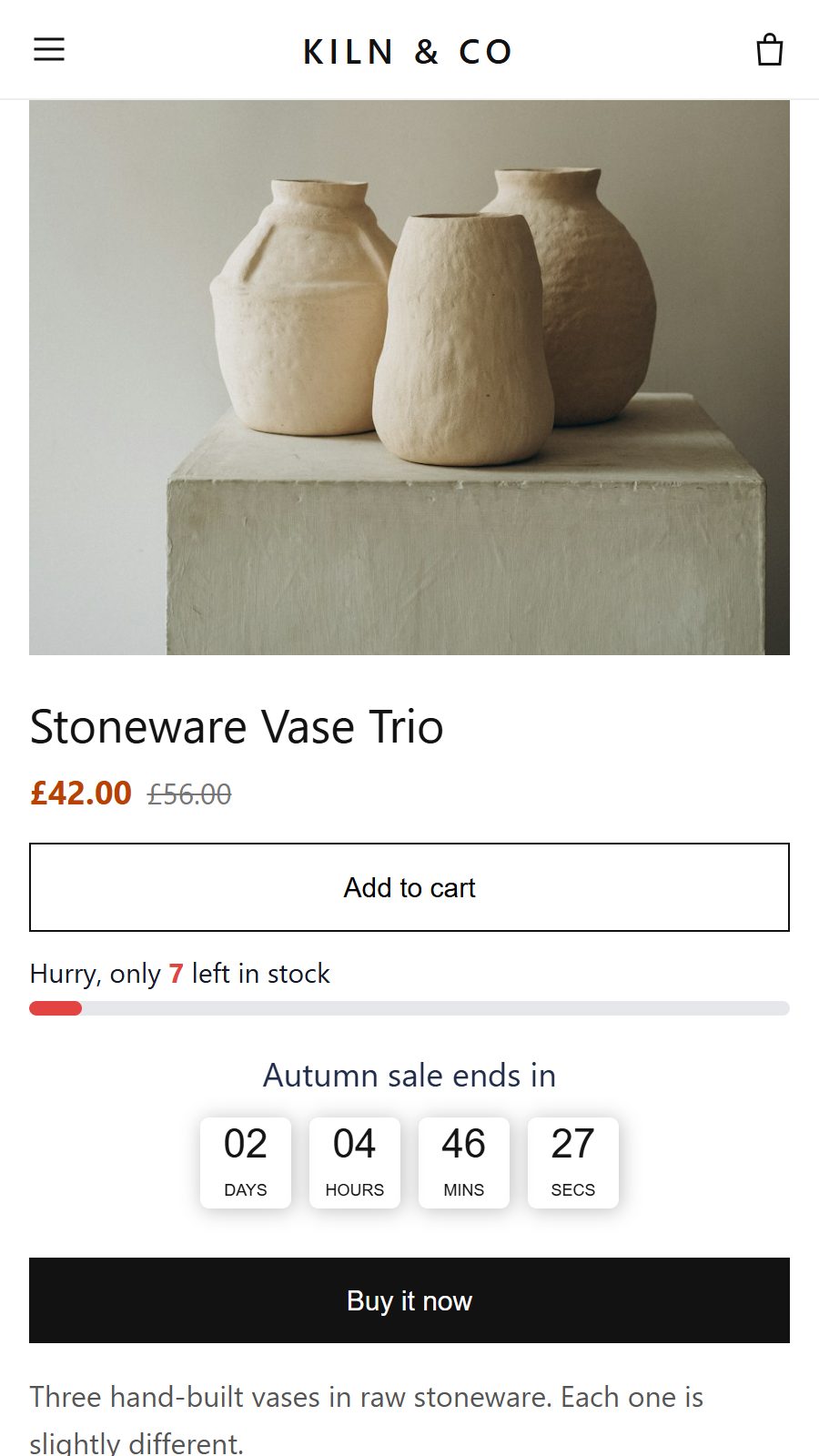
- Place it below add to cart. It sits in view when the shopper reaches the button, without pushing the price down the page.
- Keep it honest. A stock count that never goes down soon stops working, and shoppers notice. Use live stock levels where you can, so the count matches what's really left.
- Pair it with a timer sparingly. A stock counter and a countdown together work for a short sale. On every product all year round, they become wallpaper.
Setup is in the Inventory Countdown guide.
5. Preview it on your own phone
Desktop previews and browser resizing get you most of the way, but they don't show everything a real phone does. Before a sale goes live:
- Open your store on your own phone, logged out, on mobile data rather than office Wi-Fi.
- Check the home page, a collection and a product page. That's where shoppers see the timer, the badges and the stock counter.
- Scroll each page. Make sure a fixed timer bar doesn't hide your header or menu, or clash with a chat bubble or a sticky add to cart button.
- Ask one person who didn't set up the sale what the offer is and when it ends. If they can't say within a few seconds, shorten the copy.
6. Final thoughts
Urgency tools earn their place by being clear, not by being big. Short copy, small badges and a stock counter next to the button do more on a phone than a banner that fills the screen. Set the sale up for the phone first, check it on a real device, and the desktop version will look after itself.

Sales Discount Manager
Schedule sales and add countdown timers, sale badges and low-stock counters that fit mobile screens, with no theme code edits.