

You launch a campaign, traffic spikes… and the first row of your “New Arrivals” is suddenly full of sold-out items.
Customers click, hit a dead end, and bounce. Meanwhile, your team scrambles to hide products manually—only to do the same thing again when stock comes back in.
Shopify gives you a solid starting point for handling out-of-stock (OOS). But most growing stores quickly realise they don’t want one rule for every product. They want different behaviour depending on what the product is, how it sells, and whether it’s meant to be backordered.
On this page
1. Shopify’s native way to hide out-of-stock products
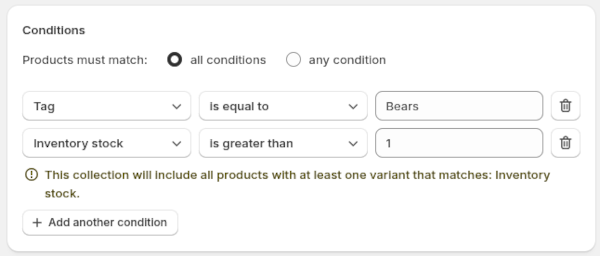
Shopify’s Help Centre explains that you can hide OOS products from collections by using smart collections with an inventory condition (for example, “Inventory stock is greater than 0”). When products go out of stock, they’re removed; when inventory returns, they can appear again.
2. Why “hide when OOS” isn’t enough
Because “hide when inventory = 0” is often too blunt. Merchants typically need exceptions (hero products, preorders) and faster or slower cadences depending on category.
3. Where hiding gets complicated in real stores
Two quick stories we see all the time:
- The hero product that shouldn’t disappear. A best-selling item goes OOS for 48 hours. If it vanishes everywhere, you lose organic demand, paid traffic relevance, and the chance to capture “notify me” or backorder intent.
- The clearance product that must disappear instantly. A clearance SKU goes OOS and your collection keeps showing it. Customers click, get frustrated, and the whole collection feels unreliable.
Same platform. Same inventory reality. Totally different “correct” behaviour. Shopify itself recognises that sometimes you might hide OOS items, and sometimes you might treat them differently (e.g., backorders vs truly unavailable items). That’s where rule-based targeting becomes valuable.
4. The Ouiteo approach: Smart Filters for targeted hiding/unhiding
Ouiteo Filters are reusable product segments. You define conditions, preview matching products, then use that filter to drive actions (like hiding OOS products and unhiding restocks). They’re available inside Ouiteo Hide Sold Out.
4.1. Live vs Background (speed vs depth)
- Live: matches products in near real-time. Always up to date for fast-moving SKUs.
- Background: refreshes hourly (updates can take up to ~1 hour), but exposes additional fields/conditions to target with more precision.
Use Live when immediacy matters; use Background when you need richer field coverage and predictable refresh cycles.
4.2. Clean logic with AND/OR + Groups
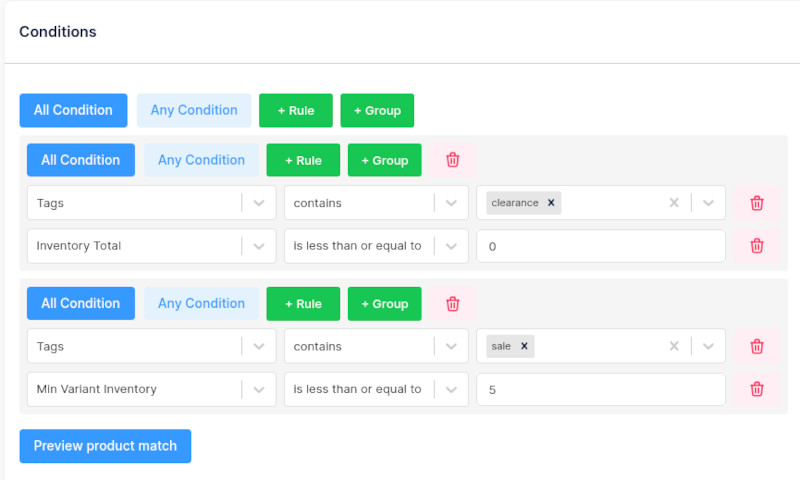
Choose All Conditions (AND) or Any Condition (OR), and build Groups to combine logic cleanly—perfect for exceptions and layered rules.
4.3. Lots of conditions to target “right products, right rule”
Filter by inventory total, tags, vendor, status, publications (sales channels), created date, variant-level signals, and computed metrics like variant stock ratio. That’s how you avoid “one-size-fits-all” hiding.
5. A simple setup flow most teams actually need
- Create a Filter (name it and set it Active)
- Choose Live or Background
- Add conditions (use Groups for exceptions)
- Preview matching products before saving
- Use that filter to power your “hide OOS” and “unhide restocked” workflow so visibility updates happen automatically as stock changes
6. Three practical “hide + restock” playbooks
6.1. Playbook A: Hide sold-out products, but keep backorders visible
Goal: Don’t show truly unavailable items—without hiding products you intentionally backorder.
Example logic:
- Group 1 (must match): Inventory total = 0
- Group 2 (must match): Published on Online Store (Publications)
- Group 3 (exclude): Tag contains “backorder” OR “preorder”
Then:
- hide/unpublish products that match this filter,
- and automatically unhide when inventory returns (restocked).
6.2. Playbook B: Different restock rules for different product types
Goal: Restocking behaviour isn’t the same across categories.
Example:
- Seasonal/limited drops: hide immediately at 0
- Evergreen basics: keep visible until 0, then hide
- High-consideration products: keep visible even at 0, but push down or label differently
With filters, you can split by:
- Product type, vendor, tags, and status
- …and apply different hide/unhide workflows per segment.
6.3. Playbook C: Use variant signals so you don’t hide too early
Goal: Avoid hiding products where some variants are still available.
Instead of “inventory total”, you can also target using:
- Number of available variants and variant stock ratio (available variants ÷ total variants).
That’s useful for apparel/footwear stores where one size sells out first but the product is still viable.
Final Thought
Hiding sold-out products shouldn’t mean hiding everything at 0. It should mean hiding the right products, keeping intentional exceptions visible, and automatically bringing items back the moment they restock. Smart Filters in Ouiteo Hide Sold Out give merchandising teams the control to do exactly that.